Best External SSD for Mac in 2026
TL;DR — Quick Answer
The LaCie Rugged SSD Pro5 is the fastest external SSD you can connect to an M4 Pro or M4 Max Mac, full stop. For most Mac users — M1 through M3 — the OWC Envoy Pro FX or SanDisk Pro-G40 deliver maximum Thunderbolt 3/4 performance at more sensible prices. If you don’t have Thunderbolt at all, the CalDigit Tuff Nano+ is the best USB-only option. Don’t buy a USB-C SSD expecting Thunderbolt speeds — the connector looks identical but the speed is completely different.
Does Any USB-C SSD Work with a Mac?
Yes — any USB-C SSD will plug into a Mac and be recognized without drivers. But whether you get fast speeds depends on which standard the drive and your Mac’s port support.
Mac USB-C ports come in three speed tiers:
| Port type | Bandwidth | Real-world SSD speed |
|---|---|---|
| USB 3.1 Gen 1 (5 Gbps) | 5 Gbps | ~450 MB/s |
| USB 3.2 Gen 2 (10 Gbps) | 10 Gbps | ~900–1,050 MB/s |
| Thunderbolt 3/4 (40 Gbps) | 40 Gbps | ~2,500–3,000 MB/s |
| Thunderbolt 5 (120 Gbps) | 120 Gbps | ~5,000–6,700 MB/s |
The connector is identical in all four cases. The lightning bolt (⚡) icon next to the port indicates Thunderbolt. All M1 and later Macs have at least Thunderbolt 3 on their USB-C ports. Only M4 Pro and M4 Max machines have Thunderbolt 5.
The bottom line: any USB-C SSD works with a Mac, but only Thunderbolt drives unlock full Mac performance. A standard USB 3.2 drive plugged into a Mac’s Thunderbolt port runs at USB speeds — around 1,000 MB/s instead of 2,500–3,000 MB/s. You’re paying for a faster drive and not getting the speed.
Quick Comparison
| Product | Interface | Speed | Best For | Buy |
|---|---|---|---|---|
| LaCie Rugged SSD Pro5 | Thunderbolt 5 | 6,700 MB/s | M4 Pro/Max Mac, 8K RAW | Amazon |
| OWC Envoy Pro FX | Thunderbolt 3/4 | 2,800 MB/s | Final Cut Pro, Mac-first workflows | Amazon |
| SanDisk Pro-G40 | TB3 / USB-C | 3,000 MB/s | Mac + PC mixed workflows | Amazon |
| Samsung T9 | USB 3.2 Gen 2×2 | 2,000 MB/s | Budget-conscious Mac users | Amazon |
| CalDigit Tuff Nano+ | USB-C 3.2 Gen 2 | 1,055 MB/s | Ultra-compact everyday carry | Amazon |
| WD My Passport SSD | USB 3.2 Gen 2 | 1,050 MB/s | Backup, everyday portability | Amazon |
How We Picked
- Thunderbolt compatibility. Apple Silicon Macs support Thunderbolt natively. We prioritized drives that use that bandwidth.
- macOS compatibility out of the box. Some drives ship formatted for Windows and need reformatting. We noted which drives are Mac-ready.
- Thermal behavior under sustained load. macOS Time Machine backups and large project transfers can run for hours. Drives that throttle aggressively are noted.
- Physical durability. Macs are expensive, and people carry them to coffee shops, studios, and job sites. The best Mac SSD companions are rugged.
- USB-C versus Thunderbolt clarity. We spell out exactly what speed you’ll get on each port type — no vague claims.
- Value relative to Mac port capabilities. Paying for Thunderbolt 5 on an M2 MacBook Air makes no sense. We match drive tier to likely host machine.
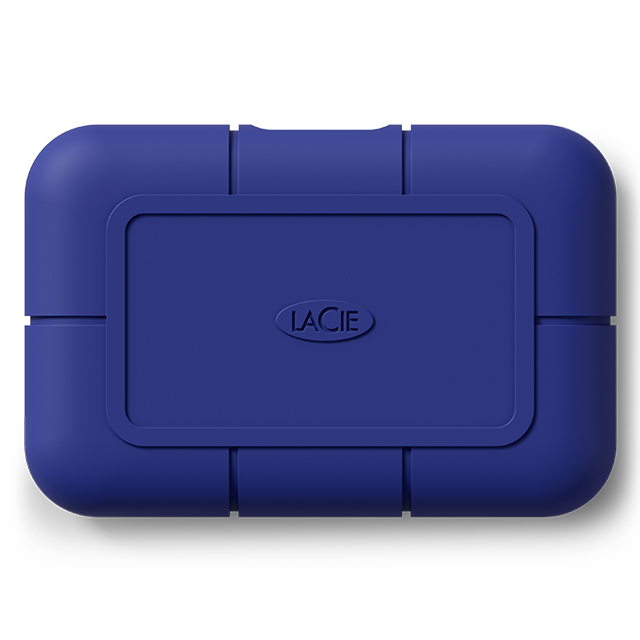
LaCie Rugged SSD Pro5 — Best External SSD for Mac (M4 Pro/Max)
- Capacity: 2TB, 4TB
- Interface: Thunderbolt 5 (USB-C connector)
- Sequential read: 6,700 MB/s
- Sequential write: 5,300 MB/s
- Mac Thunderbolt: TB5 — full speed on M4 Pro/Max Macs only
- Warranty: 5 years
- IP rating: IP68
The LaCie Rugged SSD Pro5 is the only external SSD that fully exploits the Thunderbolt 5 bandwidth on M4 Pro and M4 Max MacBook Pros. If you have one of those machines and you’re editing ProRes RAW, BRAW, or RED footage — or ingesting large raw photo libraries at maximum speed — this is the drive to have.
macOS handles the Thunderbolt 5 connection natively, with no special driver installation. It shows up as an NVMe drive in System Information, and macOS’s APFS volumes run perfectly on it. The IP68 rating makes it a safe companion in production environments where drops, dust, and rain are occupational hazards. LaCie includes a five-year warranty with data recovery services — a meaningful safety net for a drive that’s likely to hold irreplaceable media.
On older Macs (M1 through M3), this drive is overkill. Connected via Thunderbolt 3 or 4, it delivers around 2,800–3,000 MB/s — which is still fast, but you’re paying a Pro5 premium for non-Pro5 speeds. Buy the Pro5 specifically if you have an M4 Pro or M4 Max.
View on Amazon (2TB) View on Amazon (4TB)
OWC Envoy Pro FX — Best for Mac-First Workflows (M1–M3)
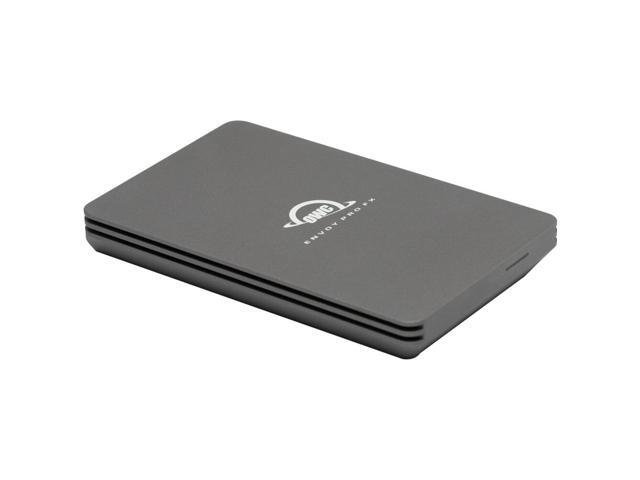
- Capacity: 240GB, 480GB, 1TB, 2TB, 4TB
- Interface: Thunderbolt 3/4 / USB 3.2 Gen 2
- Sequential read: 2,800 MB/s (Thunderbolt)
- Sequential write: ~2,500 MB/s (Thunderbolt)
- Mac Thunderbolt: Yes — full speed on all M-series Macs
- Warranty: 3 years
- IP rating: IP67
OWC builds for Mac. The Envoy Pro FX ships formatted as HFS+ (macOS Extended), which means you can plug it in and start working on any Mac without touching Disk Utility. It supports Thunderbolt 3 and 4, so every M1, M2, M3, and M4 Mac gets full speed. The IP67 rating handles splashes and dust without drama, and the aluminum enclosure is a passive heat sink.
For Final Cut Pro libraries, Logic Pro projects, and Time Machine backups (though you don’t need this speed for Time Machine — more on that in the FAQ), this drive is the natural companion to any Apple Silicon Mac. The bus-powered design means one cable handles both data and power — no dongle, no wall adapter, no second cable to lose.
The 4TB model is particularly compelling for video editors and photographers who want to keep a complete project archive on a single portable drive without sacrificing speed.
View on Amazon (1TB) View on Amazon (2TB) View on Amazon (4TB)
SanDisk Pro-G40 — Best Mac/PC Crossover Drive
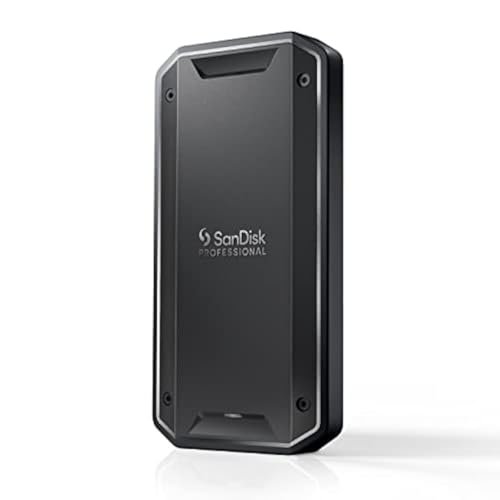
- Capacity: 1TB, 2TB, 4TB
- Interface: Thunderbolt 3 (40 Gbps) / USB-C (10 Gbps)
- Sequential read: 3,000 MB/s (TB3) / ~900 MB/s (USB)
- Sequential write: ~2,500 MB/s (TB3)
- Mac Thunderbolt: Yes — TB3/4, full speed on all M-series Macs
- Warranty: 5 years
- IP rating: IP68
The Pro-G40 is our top choice for anyone who works across both Mac and Windows. It ships in exFAT format, which both platforms read natively, and delivers 3,000 MB/s over Thunderbolt 3 — the fastest Thunderbolt 3 portable SSD available. The single USB-C port intelligently negotiates either Thunderbolt or USB depending on the host, so the same cable and port works on your M3 MacBook Pro and your Windows laptop without adapters.
The IP68 rating and 4,000 lb crush resistance make it genuinely field-ready. For photographers on assignment or video DPs doing on-set offloads, this is the drive that comes back from tough shoots.
On macOS, Time Machine can use this drive (format as APFS or HFS+ first), and for intensive workflows like ProRes editing or large RAW photo libraries, the 3,000 MB/s throughput handles it all. At 3,000 MB/s, this is also one of the few external SSDs fast enough for 4K ProRes RAW editing on a MacBook Pro without proxy transcoding.
View on Amazon (1TB) View on Amazon (2TB)
Samsung T9 — Best Value USB SSD for Mac
- Capacity: 1TB, 2TB, 4TB
- Interface: USB 3.2 Gen 2×2 (20 Gbps)
- Sequential read: 2,000 MB/s
- Sequential write: 2,000 MB/s
- Mac Thunderbolt: No
- Warranty: 3 years
- IP rating: None (3m drop resistance)
The Samsung T9 is an honest drive: it’s USB 3.2 Gen 2×2, not Thunderbolt, and Samsung doesn’t pretend otherwise. Over a 20 Gbps USB port, it delivers 2,000 MB/s in both directions. The Mac caveat is important here — current M-series Macs support USB 3.2 Gen 2×2 speeds (20 Gbps) over their USB-C ports, so on M1 and later, you’ll actually see close to the rated speed.
For Mac users who primarily handle 4K H.264, HEVC, large photo libraries, or document-heavy work, 2,000 MB/s is more than sufficient. For Time Machine, it’s overkill. For creative professionals shooting ProRes or RAW, it’s not enough. Used within those limits, the T9 is a dependable, compact, and well-priced drive.
CalDigit Tuff Nano+ — Best Compact Everyday Carry for Mac
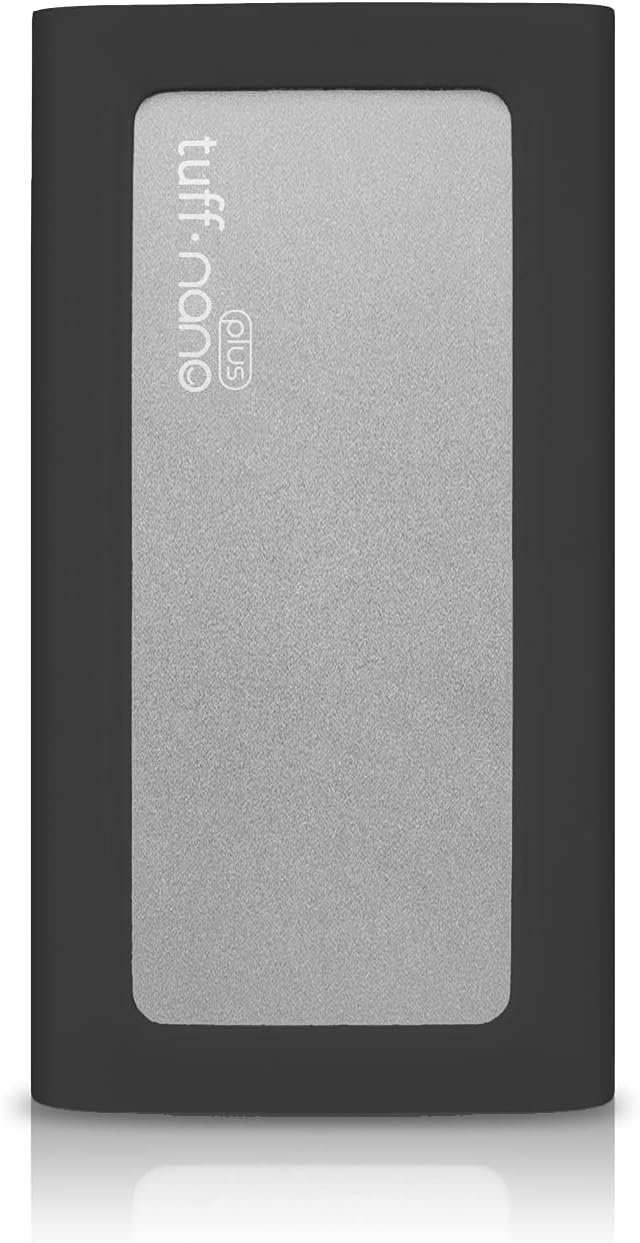
- Capacity: 1TB, 2TB
- Interface: USB-C 3.2 Gen 2 (10 Gbps)
- Sequential read: 1,055 MB/s
- Sequential write: ~900 MB/s
- Mac Thunderbolt: No (USB-C only, but TB port compatible)
- Warranty: 5 years
- IP rating: IP67
The CalDigit Tuff Nano+ is the smallest, lightest rugged SSD on this list, and it fits in a pocket or keychain loop. At 1,055 MB/s, it’s not the fastest drive here, but it exceeds what most M-series Macs deliver over a standard USB-C (10 Gbps) connection — meaning you’re not leaving significant speed on the table.
The IP67 rating makes it genuinely waterproof, and the military-grade 3m drop resistance is tested and certified, not marketing language. For Mac users who want a reliable daily carry drive for document backup, photo offloads, and general portability without the bulk of a larger enclosure, this is the one.
CalDigit is well-respected in the Mac community for their Thunderbolt docks, and the Tuff Nano+ reflects that same quality-first approach in a budget-accessible package. The 5-year warranty is exceptional for the price.
WD My Passport SSD — Best Entry-Level Mac SSD
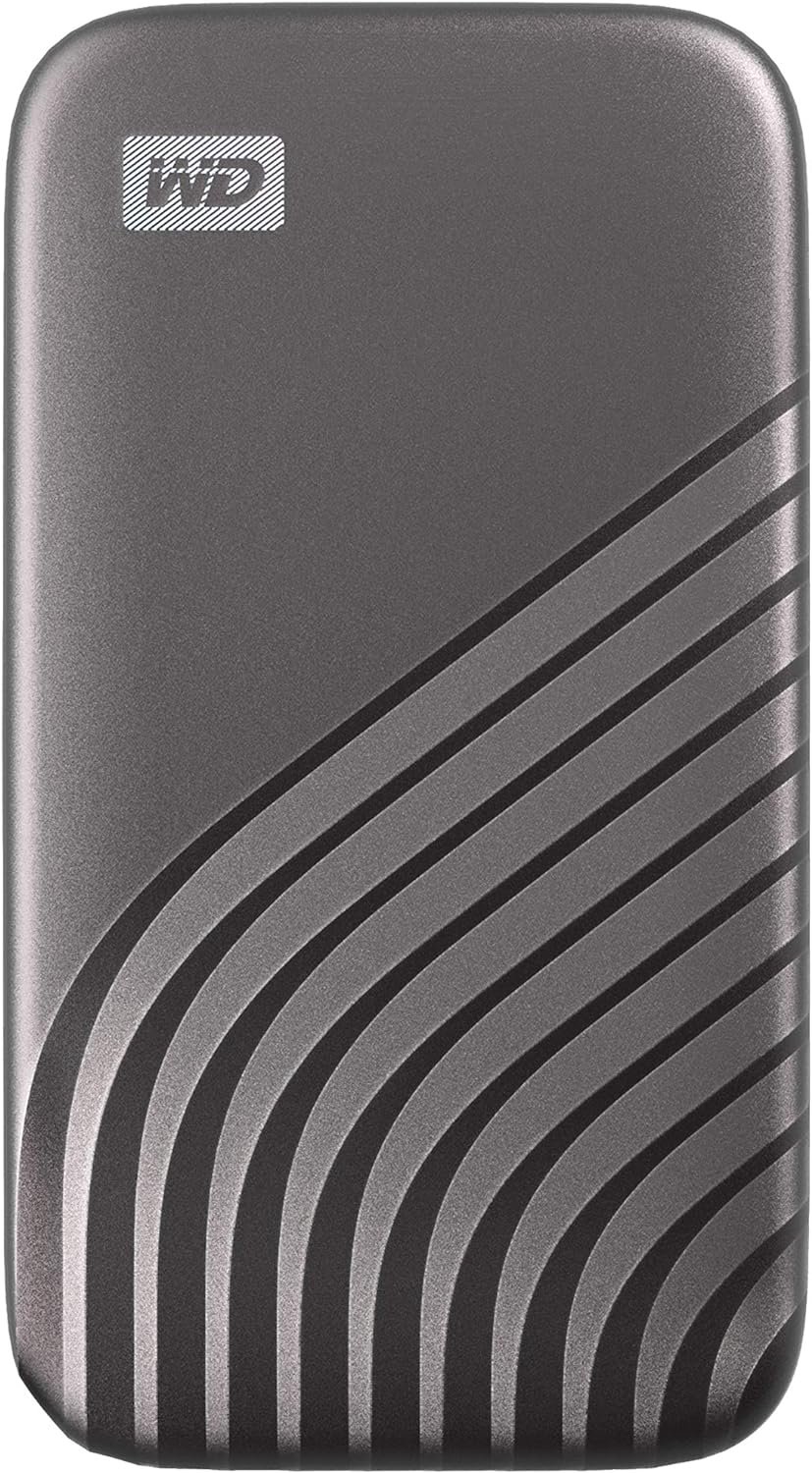
- Capacity: 500GB, 1TB, 2TB, 4TB
- Interface: USB 3.2 Gen 2 (10 Gbps)
- Sequential read: 1,050 MB/s
- Sequential write: ~1,000 MB/s
- Mac Thunderbolt: No
- Warranty: 5 years
- IP rating: None
- Hardware encryption: 256-bit AES
The WD My Passport SSD is the most affordable drive on this list and the most Mac-friendly out of the box among USB drives. WD includes USB-C to USB-A adapter in the box, which means it works with older Mac USB-A ports, newer USB-C Macs, and everything in between without buying adapters separately. The 256-bit AES hardware encryption, configurable with WD’s Drive Security app, adds a meaningful layer of protection if the drive is lost or stolen — useful for anyone carrying client work.
At 1,050 MB/s, this drive is well-suited for Time Machine backups, document archives, and media offloads. It’s not a performance drive for editing.
Frequently Asked Questions
Does any USB-C SSD work with a Mac?
Yes — any USB-C drive plugs into a Mac and is recognized immediately. The question is speed. Standard USB-C ports on Macs run at 5–10 Gbps depending on the model. Thunderbolt ports (marked with ⚡) run at 40 Gbps. Only Thunderbolt drives unlock full Mac performance. A fast USB drive in a Thunderbolt port runs at USB speeds, not Thunderbolt speeds.
What is the difference between Thunderbolt and USB-C on a Mac?
Thunderbolt 3/4 and USB-C use the same connector shape, but Thunderbolt carries 40 Gbps versus 10 Gbps for USB 3.2 Gen 2. All M-series MacBook Pro, MacBook Air, Mac mini, Mac Studio, and Mac Pro models support Thunderbolt natively. The icon next to the port (a lightning bolt ⚡ for Thunderbolt, a circle for USB-C only) tells you which you have.
Should I use an external SSD for Time Machine on Mac?
You can, but you don’t need a fast SSD for Time Machine. Time Machine backups are incremental and typically run slowly in the background — any 200+ MB/s drive handles them without bottlenecking. Using a fast Thunderbolt SSD for Time Machine is technically fine but wastes the drive’s capability. A dedicated backup HDD or NAS is usually the better value.
Can I format an external SSD as APFS on Mac?
Yes. Open Disk Utility, select the drive, choose Erase, pick APFS as the format and GUID Partition Map as the scheme. APFS is optimized for flash storage and enables features like snapshots, which Time Machine uses for fast incremental backups.
Do I need a Thunderbolt cable to get Thunderbolt speeds?
Yes. USB-C cables vary in their bandwidth support. A cheap USB-C cable may only support USB 2.0 speeds (480 Mbps). For Thunderbolt 3/4 speeds, you need a Thunderbolt-certified cable — usually marked with the ⚡ icon on the connector. Most Thunderbolt drives include a TB-certified cable in the box; don’t substitute a generic USB-C cable.
Does macOS need special drivers for external SSDs?
No. macOS handles NVMe drives natively since macOS 10.13 (High Sierra). External Thunderbolt and USB SSDs appear in Finder and Disk Utility without any third-party software. Some manufacturers offer optional apps (OWC SoftRAID, Samsung Magician) for monitoring and firmware updates, but these are not required for normal operation.