Best External Hard Drive in 2026
TL;DR — Quick Answer
The WD My Passport is the best portable external HDD for most people — compact, bus-powered, reliable, and available up to 5TB. For desktop backup storage where cost per TB is the priority, the Seagate Expansion Desktop gives you up to 24TB at the lowest price per gigabyte you’ll find anywhere. If you mostly want a drive to carry in a bag, buy a portable SSD instead — but for backups, archives, and large media libraries, HDDs still win on price.
| Product | Key Spec | Capacity | Best For | Buy |
|---|---|---|---|---|
| WD My Passport | USB 3.0/USB-C, bus-powered, 3yr warranty | 1TB–5TB | Everyday portable backup | Amazon |
| Seagate One Touch HDD | USB 3.0, bus-powered, 2yr warranty | 1TB–5TB | Travel backup, color choice | Amazon |
| Toshiba Canvio Flex | USB-C + USB-A, exFAT, 3yr warranty | 1TB–4TB | Mac/PC/tablet cross-platform | Amazon |
| Seagate Backup Plus Portable | USB 3.0, bus-powered, 2yr warranty | 1TB–4TB | Budget portable | Amazon |
| Seagate Expansion Desktop | USB 3.0, AC-powered, 1yr warranty | 2TB–24TB | High-capacity home backup | Amazon |
| WD Elements Desktop | USB 3.0, AC-powered, 3yr warranty | 2TB–24TB | High-capacity plug-and-play | Amazon |
How We Picked
- Bus-powered vs. wall-powered. Portable drives run off USB power — no adapter needed. Desktop drives need an AC adapter but hold more data at a lower cost per TB. We evaluated both categories.
- Cost per TB. External HDDs compete on price. We looked at current street prices to make sure each pick is genuinely good value at its capacity point.
- Reliability track record. We cross-referenced manufacturer reliability data and user reports to exclude drives with known failure patterns.
- Compatibility. Mac and PC compatibility matters. We noted whether each drive ships formatted NTFS (needs reformatting on Mac) or exFAT.
- USB standard. USB 3.0 (5Gbps) is sufficient for any spinning HDD — the mechanical drive will max out well before the interface. USB-C connectivity is a bonus for modern laptops.
- Warranty length. Anything under 2 years is a signal that the manufacturer isn’t confident in the hardware.
Should I Buy an External SSD or HDD?
For backup and archival storage, buy a HDD. A 4TB external HDD costs a fraction of a 4TB external SSD, and for storing Time Machine backups, NAS offloads, photo archives, or large video files, you’ll never notice the speed difference. External SSDs win for portability and durability under shock — if you’re going to carry it in a bag every day or use it in the field, get an SSD. If it’s going to sit on a desk or a shelf and back up your computer, get a HDD and put the savings toward more capacity.
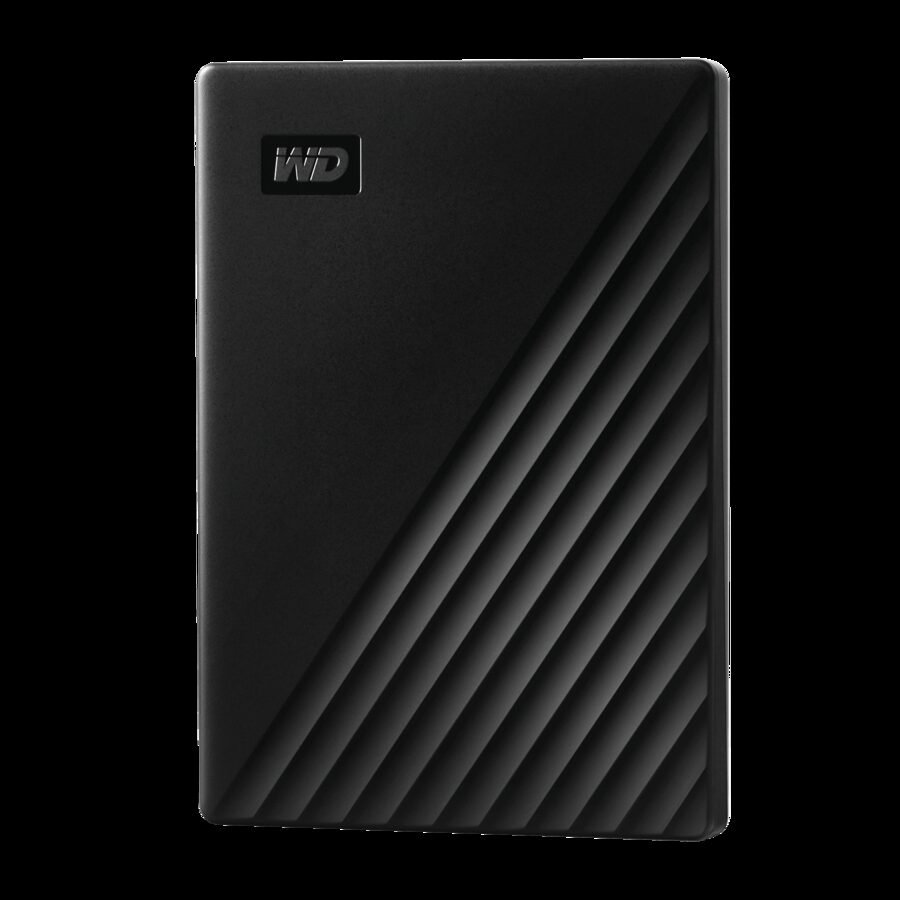
WD My Passport — Best Portable External HDD
- Capacity options: 1TB–5TB
- USB standard: USB 3.0 (USB-A) with USB-C on newer models
- Type: Portable (bus-powered)
- Warranty: 3 years
The WD My Passport has earned its position as the default recommendation for portable external hard drives by being consistently reliable, reasonably priced, and available in enough colors and capacities to suit almost any use case. It fits in a shirt pocket, doesn’t need a power adapter, and works with both Windows and Mac out of the box (Windows formatting; free reformatting utility available for Mac).
WD bundles its backup software and hardware-based 256-bit AES encryption with password protection, which matters if you’re carrying sensitive files on a drive that could get lost or stolen. The password protection isn’t military-grade security, but it’s far better than nothing.
The newer USB-C variants include both a USB-C and a USB-A cable in the box, solving the adapter problem for both older and newer laptops in one package. At 5TB in a pocket-sized form factor, the My Passport represents the current ceiling for portable HDD capacity.
Seagate One Touch HDD — Best Portable for Style Picks and Software Bundles

- Capacity options: 1TB–5TB
- USB standard: USB 3.0
- Type: Portable (bus-powered)
- Warranty: 2 years
The Seagate One Touch HDD competes directly with the My Passport and usually comes in slightly cheaper at equivalent capacity points. It’s available in multiple colors (black, silver, moonlight blue), has a brushed metal finish, and Seagate bundles a 1-year Mylio Create subscription and a 4-month Adobe Creative Cloud Photography plan with purchase — real value for photographers and content creators.
Performance is what you’d expect from a portable HDD: sequential reads in the 120–130 MB/s range over USB 3.0, which comfortably saturates any real-world backup or file transfer workflow. The drive is plug-and-play on Windows and can be reformatted for Mac in minutes.
For anyone who wants a clean-looking backup drive to leave on their desk or toss in a laptop bag, and who can use the Adobe/Mylio bundle, the One Touch is a strong value play.
Toshiba Canvio Flex — Best Cross-Platform Portable Drive
- Capacity options: 1TB–4TB
- USB standard: USB 3.0 with USB-C connector
- Type: Portable (bus-powered)
- Warranty: 3 years
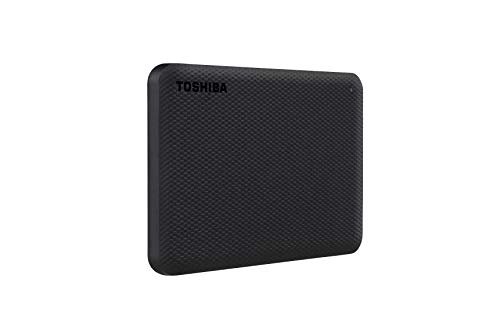
The Canvio Flex stands out from the WD and Seagate competition by shipping in a format that works equally well with Macs, Windows PCs, and tablets without reformatting. The drive comes formatted as exFAT out of the box, which is natively readable and writable on macOS, Windows, and iPadOS without any conversion. Toshiba also includes both a USB-C cable and a USB-A adapter in the box.
For someone who regularly moves files between a MacBook and a Windows desktop, or between a laptop and an iPad Pro with a USB-C port, the Canvio Flex eliminates the formatting friction that most other drives impose. The 3-year warranty matches WD’s and the aluminum-look silver finish is professional enough for a camera bag or office desk.
Throughput is on par with the category: real-world USB 3.0 transfer speeds around 120–135 MB/s for large sequential files.
Seagate Backup Plus Portable — Best Budget Portable Drive
- Capacity options: 1TB–4TB
- USB standard: USB 3.0
- Type: Portable (bus-powered)
- Warranty: 2 years
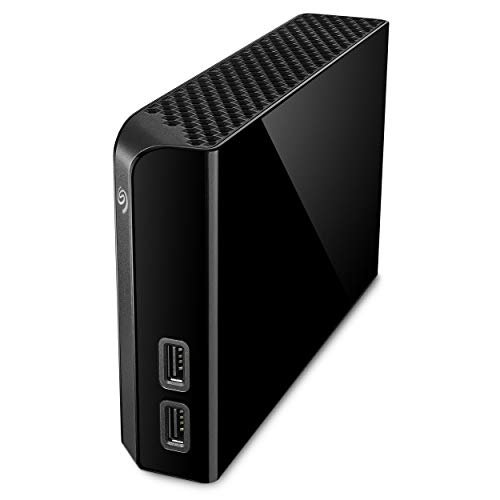
The Seagate Backup Plus Portable is the drive to recommend when someone asks for a reliable external hard drive at the lowest possible price. It consistently comes in below competing portable drives at 1TB and 2TB capacity points, and Seagate’s manufacturing quality at these proven capacity points is solid.
It’s a no-frills drive: plug it in, it works. The backup software is optional and mediocre, and the finish is plastic rather than metal. But for a drive that’s going to live in a desk drawer and get plugged in once a week to run a Time Machine or Windows Backup job, those things don’t matter.
The 2-year warranty and USB 3.0 (no USB-C) are the main limitations. If you want USB-C or longer warranty coverage, the Canvio Flex or My Passport is worth the small premium.
Seagate Expansion Desktop — Best Value Desktop Drive for Bulk Storage
- Capacity options: 2TB–24TB
- USB standard: USB 3.0
- Type: Desktop (AC-powered)
- Warranty: 1 year
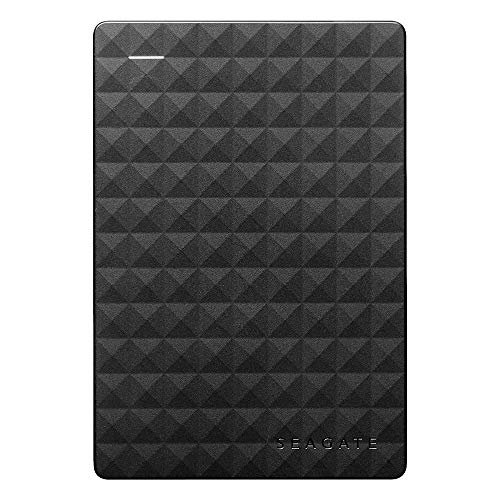
The Seagate Expansion Desktop is the drive you buy when you need the most storage for the least money and are willing to accept a minimal feature set. At the 8TB, 10TB, 16TB, and 22TB capacity points, it consistently offers the lowest price per TB of any external drive on the market. For a backup destination drive, a media archive, or a Time Machine target that lives permanently on a desk, it gets the job done.
The drive is plug-and-play on Windows and can be reformatted for Mac. There’s no hardware encryption, no bundled software of value, and no USB-C. Seagate includes Rescue Data Recovery Services on recent models, which softens the risk of the 1-year warranty somewhat — but only somewhat.
If cost per TB is your primary metric and the drive is going on a shelf and rarely touched, this is the right buy. If you want more peace of mind, spend slightly more on the WD Elements Desktop for its 3-year warranty.
WD Elements Desktop — Best Plug-and-Play Desktop Drive
- Capacity options: 2TB–24TB
- USB standard: USB 3.0 (USB 3.2 Gen 1 on newer models)
- Type: Desktop (AC-powered)
- Warranty: 3 years
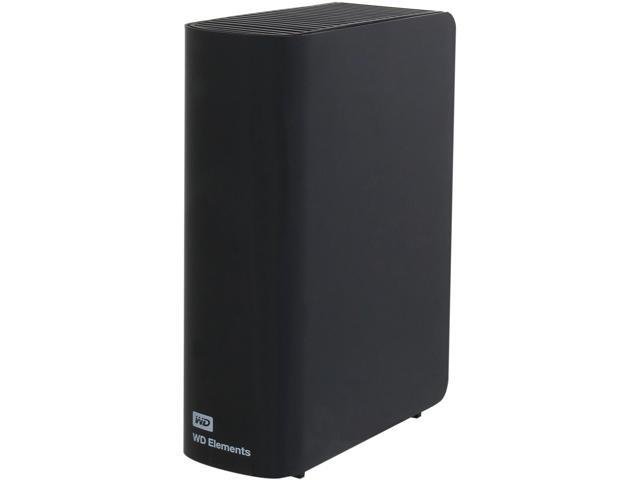
The WD Elements Desktop does almost everything the Seagate Expansion Desktop does, but with a 3-year warranty — which is a meaningful difference for a device holding your backup data. It’s also formatted NTFS out of the box with reliable plug-and-play behavior on Windows, and WD makes the reformatting process straightforward for Mac users.
The drive is large, black, and utilitarian — it’s meant to sit on a desk and be largely ignored while your backup software does its thing. WD uses proven drive internals across this product line, and the failure rates in this category are competitive with Seagate.
At the 18TB and 20TB capacity points, the WD Elements Desktop typically comes in only a few dollars more than the Seagate Expansion at the same capacity. For most users, that premium is worth the extra two years of warranty coverage.
When HDD Beats SSD for External Storage
External SSDs are faster, more durable under shock, and better for carrying in a bag. But for the following use cases, HDDs are clearly the right choice:
Large backup jobs. When you need 4TB, 8TB, or more of backup storage, an equivalent SSD costs several times more. The speed difference doesn’t matter — backup jobs run in the background while you sleep.
Photo and video archives. If you’re storing a RAW photo library or years of video footage, cost per TB is the only metric that matters. A 12TB HDD archive that you access twice a year doesn’t need SSD speeds.
Time Machine / Windows Backup targets. These run on a schedule and write incrementally. The limiting factor is almost always the backup software’s overhead, not drive speed.
NAS offloads. Copying a 4TB backup from your NAS to a desktop external drive is a good use case for a large HDD. The transfer will take a while either way.
Frequently Asked Questions
Should I buy an external SSD or HDD?
Buy a HDD for backup storage, archival, and any use case where cost per TB is the priority. Buy an SSD if you need portability, shock resistance, or speed — field recording, laptop carry, professional photo editing on location. For a drive that lives on your desk and runs backup software, the HDD is the right call every time.
Can I use an external hard drive with a Mac?
Yes, but most external HDDs ship formatted as NTFS, which Macs can read but not write to natively. You’ll need to reformat to exFAT or APFS before using it as a Mac backup drive. The Toshiba Canvio Flex ships as exFAT out of the box, which works on both Mac and Windows.
How many backups should I keep?
Follow the 3-2-1 rule: 3 copies of your data, on 2 different media types, with 1 copy offsite. An external HDD covers one of those copies. A cloud backup service (Backblaze, iCloud, Google One) covers the offsite copy.
How long do external hard drives last?
Under typical backup drive use (plugged in occasionally, not running 24/7), most external HDDs last 5–7 years before showing elevated failure risk. Running them continuously or transporting them frequently shortens that window. Replace any backup drive older than 5 years proactively.
Is it safe to unplug an external hard drive without ejecting?
No — always use “Eject” on Mac or “Safely Remove Hardware” on Windows before disconnecting. Unplugging a drive mid-write can corrupt the file system.
What’s the difference between a portable and a desktop external hard drive?
Portable drives are bus-powered via USB — no adapter needed. They’re smaller (2.5-inch drives) and lower capacity (typically 1–5TB). Desktop drives require an AC adapter, use larger 3.5-inch drives, and offer much higher capacities (up to 24TB). For a desk, desktop drives give you more storage per dollar.
Can I use an external hard drive as a NAS?
Not really — an external drive plugged into a router’s USB port gives you basic network storage, but it’s not a NAS. It lacks redundancy, access controls, RAID, and remote access features. For real NAS functionality, you need a proper NAS enclosure. See our Best Home NAS Enclosure guide.
What format should I use — NTFS, exFAT, or HFS+?
For Windows-only use: NTFS. For Mac-only use: APFS or HFS+. For cross-platform (Mac and Windows): exFAT. For Time Machine on Mac: let macOS format it as APFS.
Related Reads
- Best Home NAS Enclosure in 2026 — when you need more than a single external drive
- Best NAS Hard Drive in 2026 — drives for network-attached storage builds
- Best External SSD in 2026 — when portability and speed matter more than cost per TB
- Best External SSD for Mac in 2026 — Mac-optimized SSD picks