Best USB Flash Drive in 2026: Cut Through the USB 3.0 / 3.1 / 3.2 Naming Mess
TL;DR — Quick Answer
The Kingston DataTraveler Max is the fastest USB flash drive you can buy in 2026, with 1,000 MB/s reads that put it in SSD territory. For everyday use and carry, the Samsung Bar Plus is the practical choice — durable, widely available, and fast enough for anything short of large file transfers. Skip flash drives entirely for Windows installs if you need to make more than one; a cheap external SSD is faster and lasts longer.
| Product | Interface/Speed | Capacity | Best For | Buy |
|---|---|---|---|---|
| Samsung Bar Plus | USB 3.1 Gen 1 — 400 MB/s read / 60 MB/s write | 32GB–256GB | Everyday carry, file access | View on Amazon |
| SanDisk Extreme Pro | USB 3.2 Gen 1 — 420 MB/s read / 380 MB/s write | 128GB–1TB | Large file transfers | View on Amazon |
| Kingston DataTraveler Max | USB 3.2 Gen 2 (10 Gbps) — 1,000 MB/s read / 900 MB/s write | 256GB–1TB | Maximum performance | View on Amazon |
| Corsair Flash Voyager GTX | USB 3.1 Gen 1 — 440 MB/s read / 440 MB/s write | 128GB–1TB | Balanced read/write speed | View on Amazon |
| PNY PRO Elite V2 | USB 3.2 Gen 2 (10 Gbps) — 600 MB/s read / 250–500 MB/s write | 256GB–1TB | Fast transfers, good value | View on Amazon |
| Lexar JumpDrive P30 | USB 3.2 Gen 1 — 450 MB/s read / 450 MB/s write | 128GB–1TB | Large transfers, lifetime warranty | View on Amazon |
How We Picked
- Real-world transfer speeds, not just reads. Most flash drives advertise blistering read numbers and bury mediocre write speeds. We surface both — write speed is what matters when you’re copying files onto the drive.
- USB standard clarity. The naming — USB 3.0, 3.1, 3.2, Gen 1, Gen 2 — is a marketing disaster. We decode which standard each drive actually uses and what that means for your hardware.
- Use-case fit. A drive for Windows install media has different requirements than one for daily carry or video file transfers. We match products to tasks.
- Durability and form factor. Drives that live on keychains need different build quality than drives that sit in a desk drawer.
- Value per GB. Flash drive pricing has dropped dramatically. We flagged when you’d be better served by an external SSD.
First: The USB 3.0 / 3.1 / 3.2 Name Disaster Explained
Before you buy anything, you need to understand why USB naming is confusing — and it is, deliberately, because the USB Implementers Forum kept rebranding existing standards with new names.
Here’s the actual structure:
| What You See on the Box | What It Was Called Before | Actual Max Speed |
|---|---|---|
| USB 3.2 Gen 1 | USB 3.0 / USB 3.1 Gen 1 | 5 Gbps (~500 MB/s) |
| USB 3.2 Gen 2 | USB 3.1 Gen 2 | 10 Gbps (~1,000 MB/s) |
| USB 3.2 Gen 2×2 | — (new) | 20 Gbps (rare, Type-C only) |
The Picks
Samsung Bar Plus — Best Everyday Carry
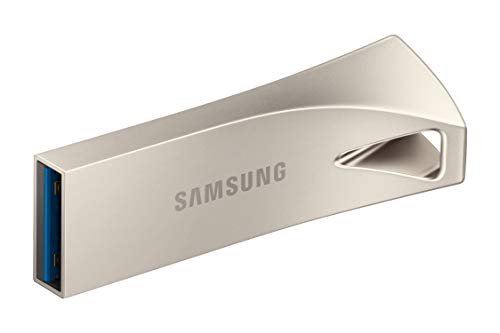
Capacity: 32GB, 64GB, 128GB, 256GB | USB standard: USB 3.1 Gen 1 (5 Gbps) | Read: 400 MB/s | Write: 60 MB/s | Warranty: 5-year | Build: Unibody metal, integrated keyring, no cap
The Samsung Bar Plus is the everyday carry standard for good reason: it’s a single piece of metal with an integrated keyring loop. There’s no cap to lose, no plastic shell to crack. It lives on your keys for years and keeps working. Samsung backs it with a 5-year warranty, which is longer than most of the competition.
The 400 MB/s read speed is fast enough that reading files off this drive never feels slow. The 60 MB/s write speed is where the Bar Plus shows its consumer positioning — copying large files onto the drive is noticeably slower than copying from it. For a keychain drive storing documents, photos, and the occasional installer, that asymmetry doesn’t matter. For transferring 100GB of video footage onto the drive, look elsewhere.
Available in champagne silver and titan gray, and the USB-A connector means it works with every computer made in the past decade without an adapter.
SanDisk Extreme Pro USB 3.2 — Best for Large File Transfers
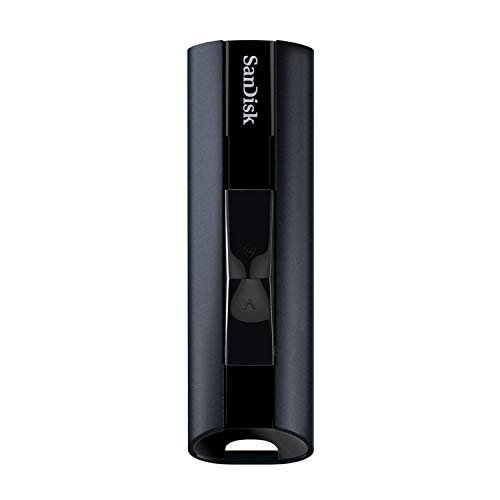
Capacity: 128GB, 256GB, 512GB, 1TB | USB standard: USB 3.2 Gen 1 (5 Gbps) | Read: 420 MB/s | Write: 380 MB/s | Warranty: 5-year | Build: Durable aluminum, sliding connector
The SanDisk Extreme Pro is the choice when write speed matters as much as read speed. At 380 MB/s write, it’s among the fastest USB flash drives that don’t require a USB 3.2 Gen 2 port. That balanced read/write profile makes it legitimate for offloading footage, distributing large files, or installing operating systems where the bottleneck is often write speed during file extraction.
Important naming note: SanDisk calls this “USB 3.2” but it operates on a 5 Gbps (Gen 1) bus, not the 10 Gbps Gen 2 bus. That’s not dishonest — USB 3.2 Gen 1 is the correct modern name for USB 3.0/3.1 Gen 1. But if you’re expecting 10 Gbps performance from the “3.2” label, you won’t get it here. The actual throughput is capped by the 5 Gbps bus well before the drive’s NAND can be a bottleneck.
The aluminum body and sliding connector (no cap) makes this a practical carry drive that won’t rattle apart. SanDisk includes RescuePRO data recovery software, which is legitimately useful if you accidentally delete something.
Kingston DataTraveler Max — Fastest USB Flash Drive Available
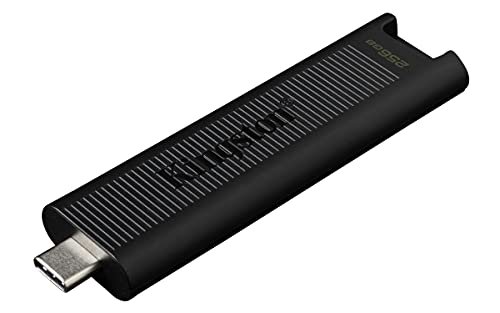
Capacity: 256GB, 512GB, 1TB | USB standard: USB 3.2 Gen 2 (10 Gbps) | Read: 1,000 MB/s | Write: 900 MB/s | Warranty: 5-year | Build: Ridged housing, sliding cap, LED indicator, USB-C connector
The Kingston DataTraveler Max is the rare flash drive that actually deserves its performance claims: 1,000 MB/s reads and 900 MB/s writes on a USB 3.2 Gen 2 (10 Gbps) bus. These are external SSD numbers in a thumb drive form factor. If you need to transfer large volumes of data quickly and your computer has a USB 3.2 Gen 2 port — which most laptops and desktops sold since 2020 do — this drive eliminates the waiting.
The USB-C connector means you’ll need a USB-C port or a USB-C to USB-A adapter on older hardware. Kingston sells a USB-A version of the DataTraveler Max as well (separate ASIN), which gives up a bit of speed but fits legacy hardware natively.
Real-world performance varies based on your host controller — if your port is actually limited to USB 3.2 Gen 1 speeds (5 Gbps), you’ll see ~500 MB/s regardless of what the drive can do. Check your computer’s spec sheet. Modern Thunderbolt ports run USB 3.2 Gen 2 speeds natively; older USB-A ports on budget laptops may be Gen 1.
Corsair Flash Voyager GTX — Best Balanced Read/Write
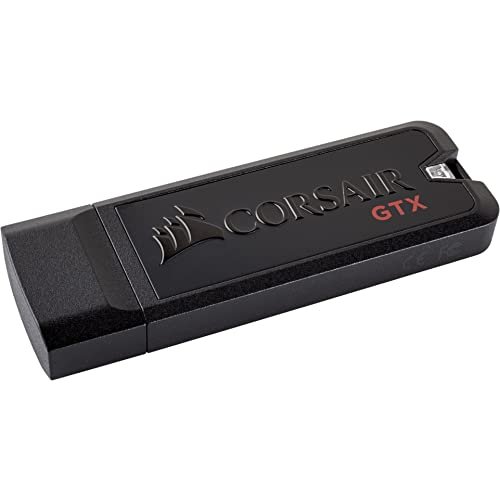
Capacity: 128GB, 256GB, 512GB, 1TB | USB standard: USB 3.1 Gen 1 (5 Gbps) | Read: 440 MB/s | Write: 440 MB/s | Warranty: 5-year | Build: Solid zinc alloy housing, retractable connector
The Corsair Flash Voyager GTX is notable for equal read and write speeds — 440 MB/s in both directions. Most USB flash drives sacrifice write speed for read performance, producing asymmetric specs that matter when you’re regularly copying large files onto the drive. The Voyager GTX’s symmetric performance makes it the better choice for workflows where you both read and write to the drive frequently, such as using it as working scratch storage or a portable project drive.
The zinc alloy body is genuinely premium — heavier and more solid than most competitors, with a retractable connector that eliminates the need for a cap. The USB-A connector works universally without adapters.
Corsair’s gaming-focused branding doesn’t detract from its practical utility. This is a solid mid-range option that outperforms its marketing in everyday use.
PNY PRO Elite V2 — Best Value Gen 2 Drive
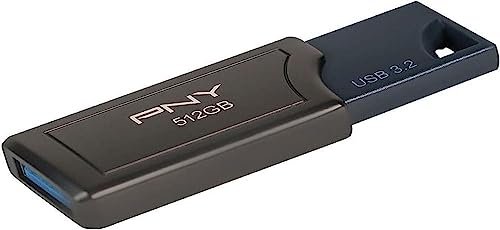
Capacity: 256GB, 512GB, 1TB | USB standard: USB 3.2 Gen 2 (10 Gbps) | Read: 600 MB/s | Write: 250–500 MB/s (varies by capacity) | Warranty: 2-year | Build: Metal casing, USB-A connector
The PNY PRO Elite V2 delivers USB 3.2 Gen 2 performance at a price that undercuts the Kingston DataTraveler Max significantly. At 600 MB/s reads, it won’t beat the Kingston, but it will outrun anything connected via a USB 3.2 Gen 1 port — and for most users’ actual workflows, 600 MB/s is more speed than they’ll ever notice in practice.
The USB-A form factor is the practical advantage here: no adapter required, works on every laptop and desktop built in the last decade. If you’re buying a Gen 2 drive for a USB-A port, this is the smarter choice over the Kingston (which is USB-C and may need an adapter anyway).
Note the write speed variation by capacity: the 256GB model writes at 250 MB/s, while 512GB and 1TB models write at 500 MB/s. If write speed matters, buy the 512GB or larger.
Lexar JumpDrive P30 — Best Value for Large Capacity
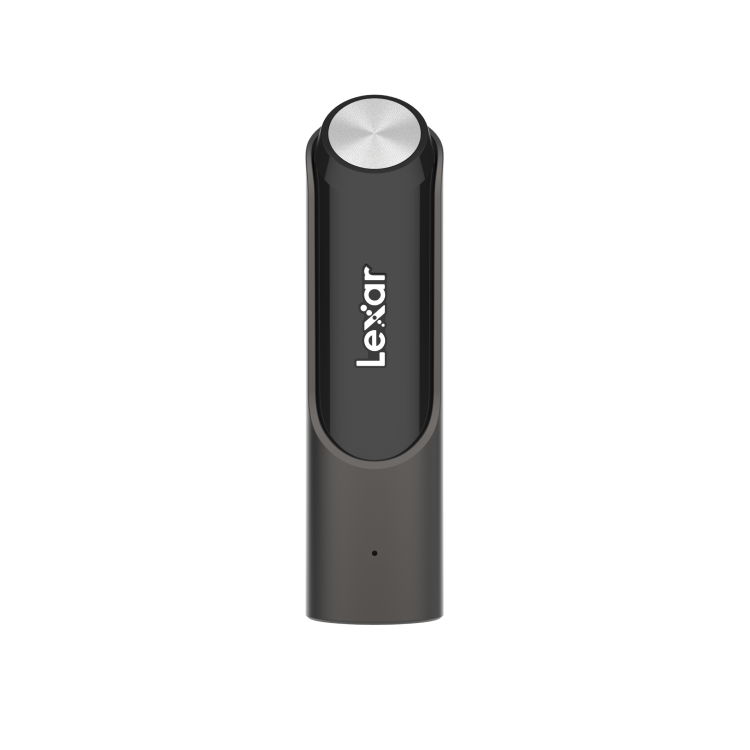
Capacity: 128GB, 256GB, 512GB, 1TB | USB standard: USB 3.2 Gen 1 (5 Gbps) | Read: 450 MB/s | Write: 450 MB/s (420 MB/s on 128GB) | Warranty: Limited lifetime | Build: Titanium metallic casing, USB-A connector
The Lexar JumpDrive P30 offers symmetric 450 MB/s read/write speeds on a USB 3.2 Gen 1 bus, which is genuinely fast for a drive at this price. The lifetime warranty is unusually strong — most drives at this price tier offer 2–5 years. Lexar is one of the few brands offering both speed and lifetime coverage at mid-range pricing.
Available up to 1TB, the P30 is a practical choice for photographers or editors who want to carry a full project’s worth of files without carrying an external SSD. The titanium metallic design is compact and refined — not as rugged as the Corsair Voyager GTX’s zinc alloy, but more pocketable.
The symmetric read/write performance means copying footage onto the drive is as fast as reading from it, which matters for workflows where you distribute content to clients on drives.
Frequently Asked Questions
What’s the difference between USB 3.0, 3.1, and 3.2?
They’re the same physical port with the same speeds, just renamed multiple times. USB 3.0 was renamed USB 3.1 Gen 1, then renamed again to USB 3.2 Gen 1. All three names describe a 5 Gbps bus. USB 3.2 Gen 2 is genuinely different — it doubles the bus to 10 Gbps and was originally called USB 3.1 Gen 2. The confusion is intentional: USB-IF rebranded older standards with new “3.2” labels, letting manufacturers market older technology with newer-sounding names. When evaluating a drive, ignore the “3.x” version number and look for “Gen 1” (5 Gbps) or “Gen 2” (10 Gbps).
Can I use a USB flash drive to install Windows 11?
Yes — a USB flash drive is the standard method for installing Windows 11. You need at least an 8GB drive (Microsoft’s minimum), though a 16GB or larger drive is recommended because the Windows 11 ISO is approximately 5.4GB and you want headroom. The drive needs to be formatted as either FAT32 (for UEFI systems) or NTFS. Use Microsoft’s Media Creation Tool or Rufus (free) to create the installer — they handle formatting automatically.
How do I make a bootable USB drive?
The easiest method is Rufus (Windows) or balenaEtcher (Windows/Mac/Linux) — both are free, open-source tools. Download your OS ISO, plug in your flash drive, select the ISO in Rufus/Etcher, and click Write. The tool formats the drive and copies the files in the correct structure. For Windows 11 specifically, Microsoft’s own Media Creation Tool does the same thing. Important: creating a bootable drive erases all existing data on the drive — back up anything you need first.
USB-A vs USB-C flash drive: which should I buy?
Buy USB-A unless you know your primary computer only has USB-C ports. USB-A connectors work on virtually every desktop, laptop, TV, car stereo, and hub made since 2010. USB-C is faster when used with a USB 3.2 Gen 2 port, but requires an adapter on USB-A hardware. The Kingston DataTraveler Max (USB-C, Gen 2) makes sense if all your hardware is recent and you need maximum speed. For general use, USB-A drives work everywhere without thinking about it.
How long do USB flash drives last?
Flash memory wears out with write cycles, not time. Consumer-grade NAND typically handles 1,000–10,000 program/erase cycles per cell. For everyday use — occasional file transfers, install media, document storage — a flash drive will outlast its usefulness before wearing out. Problems typically come from physical damage, poorly manufactured controllers, or static discharge. Buy from reputable brands (Samsung, SanDisk, Kingston, Lexar) and avoid suspiciously cheap no-name drives on Amazon, which often have counterfeit capacity reporting.
Should I buy a USB flash drive or a portable SSD?
For transfers over 64GB or frequent large-file workflows, a portable SSD wins on speed and endurance. A 1TB Samsung T9 external SSD transfers at 2,000 MB/s over USB 3.2 Gen 2 — twice the Kingston DataTraveler Max — for a competitive price. Flash drives win on form factor: they’re smaller, lighter, and fit on keychains. Use a flash drive for carry, install media, and occasional transfers. Use an external SSD for regular work with large files.
Related Reads
- Best External SSD — When a flash drive isn’t fast or large enough
- Best Rugged External SSD — Weatherproof portable storage
- Best Budget NVMe SSD — Internal upgrades if you need permanent speed
- Best SD Card — If you need storage for cameras or drones instead
- NVMe vs SATA SSD — Understanding storage interfaces